I wonder if there are some dCS recommended or tried and tested settings for Roon?
…I don’t use any of the processing within Roon at all - but I could be missing out on some pre processing tricks that make all the difference. Interested in views!
I wonder if there are some dCS recommended or tried and tested settings for Roon?
…I don’t use any of the processing within Roon at all - but I could be missing out on some pre processing tricks that make all the difference. Interested in views!
I personally use DRC as I have very limited scope for physical room treatments for ”aesthetic” reasons (unfortunately the other members of my household treat my listening room as a living room). However in a properly treated room my recommendation would be ”everything off”. If you want it to Roon is great at leaving the signal well alone.
Hello,
I’d recommend these to make Roon respect the original file volume attenuation.
This allows the volume to match the one from Mosaic.
Hope this can help,
Erwan
Super useful - thanks Erwan
My recommendation is to set Roon to down-sample DSD256 and higher to DSD128 to enable the playback of those files
Let your dCS DAC or upsampler handle all other DSP functions
Cheers
R
Great suggestion! Thanks
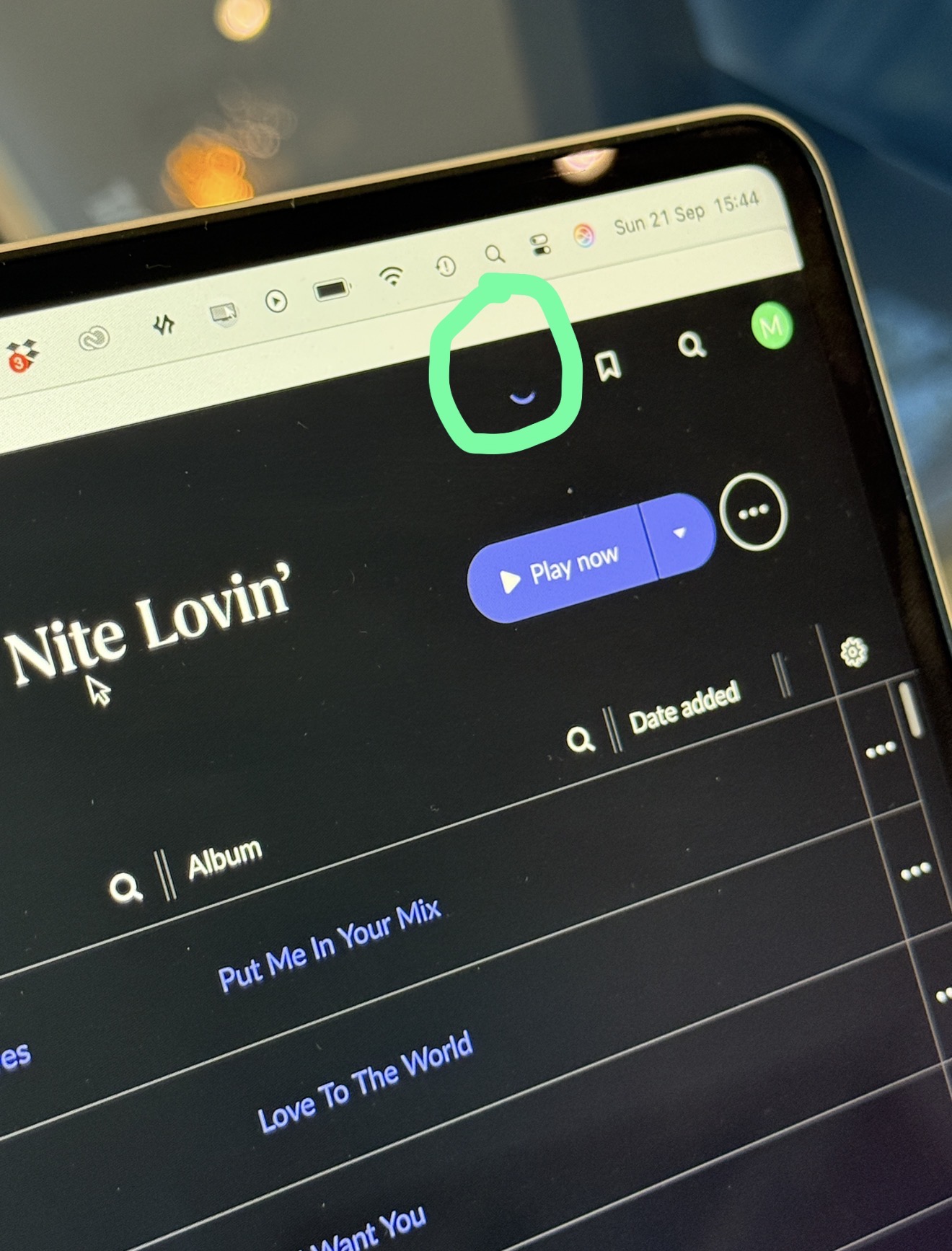
Does anybody else’s Roon literally never stop spinning this wheel?
…it feels like my core is working really hard. May be normal.
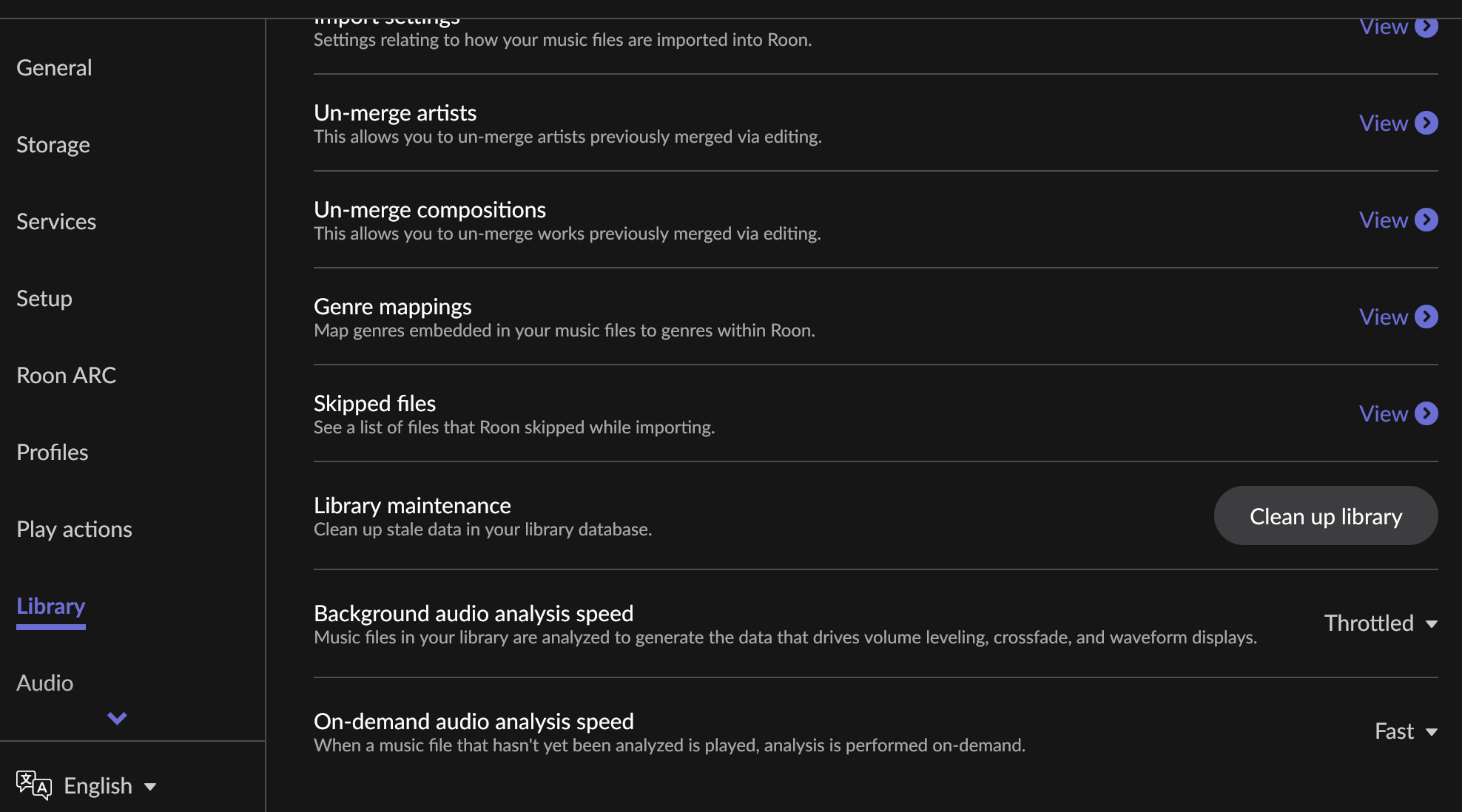
Have you set your background audio analysis (in the Library section) to throttled?
If not, I suggest that you do…
You can read about Audio Analysis in Roon, and how to make these settings, here:
Set to Throttled, Roon will use the least CPU core power, but then it will take longest to finish the job. Hence you will see the spinning wheel busy all the time. Depending on how fast your CPU core is (i.e. how many cores it has), you can speed up the process, and stop the spinning, by putting it temporarily at the highest possible speed, e.g. overnight, or set it to a compromise. Mine is set to Fast (16 cores), out of 24 cores.
Make sure the folders from Roon’s storage section only contain music files.
Never (ever!) include Roon DB or Roon backup files in those folders, otherwise Roon will spend ages browse many files for nothing.
I’ve set background analysis to off - Roon Should make it much easier for us and have “no processing setting” that shuts all dsp, processing etc off
I use light DSP settings for my HD800S headphones with my Bartok APEX. Accessing and turning off DSP in ROON is a pain in the backside. It takes 3 to 4 clicks to get to MUSE and switch off.
They should really implement a drop down present menu of all saved DSP settings in the Signal Path pop up.
I don’t think three clicks to get to the point where you turn all DSP off is asking too much. Adding another button to the main listening screen in my mind adds clutter.
Hit the “speaker icon” in the lower right of the main listening screen.
Hit the “wavey” audio control button in the pop up which takes you the audio control.
Use the button to Turn Off/On All DSP or individual settings.